
Build a Smart Temperature & Humidity Monitor with Arduino – Step-by-Step Guide
Introduction
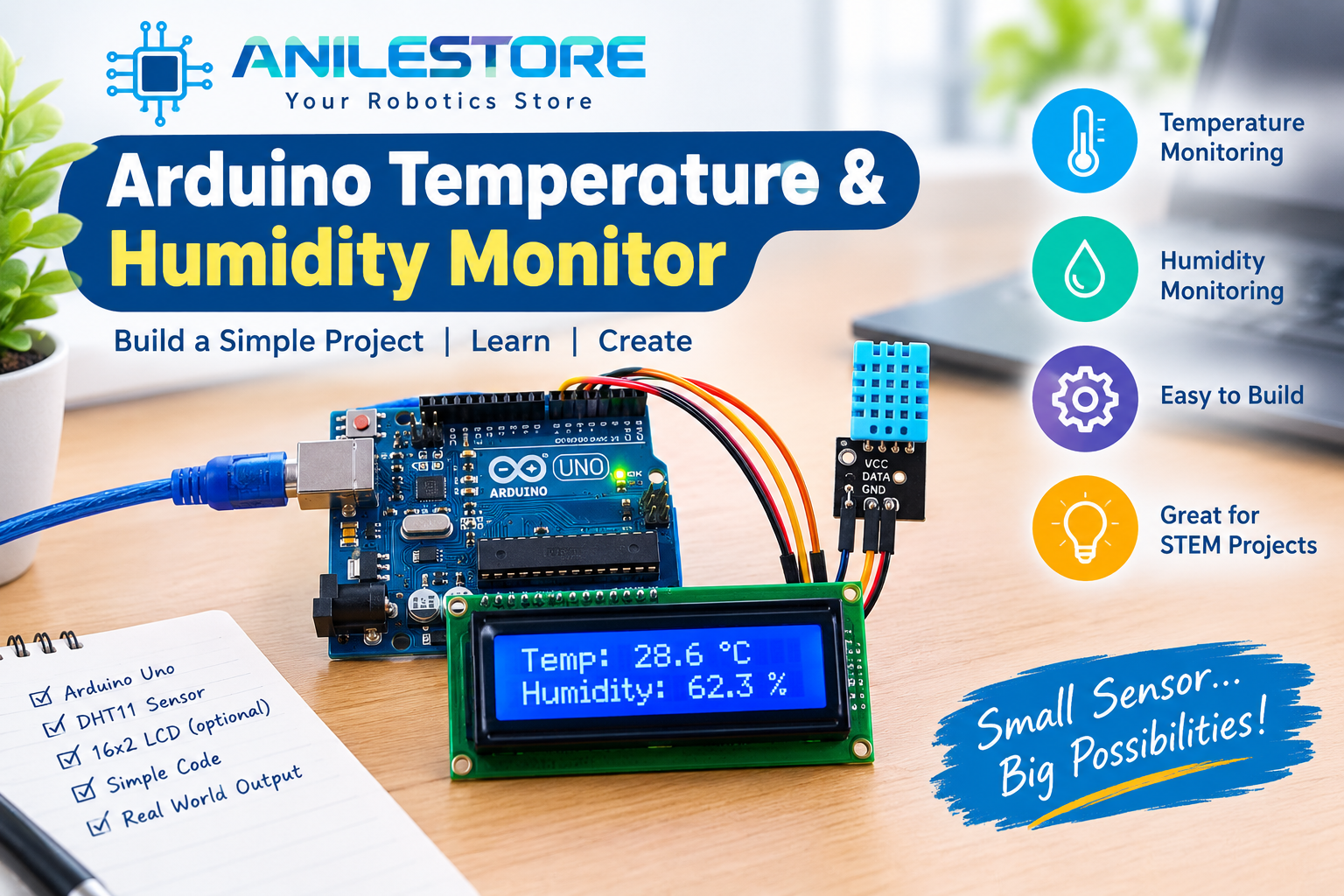
Monitoring temperature and humidity is one of the most popular beginner Arduino projects — and for good reason. Whether you're building a smart home system, a plant monitor, or a weather station, this project teaches you core skills like sensor interfacing, LCD display output, and serial communication.
In this guide, we'll build a complete Temperature & Humidity Monitor that displays live readings on a 16×2 LCD screen, with all components available at Anil Electronic Store.
What You'll Build
- A live temperature & humidity display on a 16×2 LCD
- Optional serial monitor output for logging
- Runs on 5V USB power — no external supply needed
- Total build time: ~30 minutes
Components Required (BOM)
All components below are available in stock at anilestore.com. See the kit panel on this page to add everything in one click.
Circuit Connections
DHT22 Sensor → Arduino Uno:
- VCC → 5V
- GND → GND
- DATA → Digital Pin 2
LCD 16×2 (via I2C Module) → Arduino Uno:
- VCC → 5V
- GND → GND
- SDA → A4
- SCL → A5
Arduino Code
#include <Wire.h>
#include <LiquidCrystal_I2C.h>
#include <DHT.h>

#define DHTPIN 2
#define DHTTYPE DHT22

DHT dht(DHTPIN, DHTTYPE);
LiquidCrystal_I2C lcd(0x27, 16, 2);

void setup() {
  dht.begin();
  lcd.init();
  lcd.backlight();
  lcd.print("Temp & Humidity");
  delay(2000);
  lcd.clear();
}

void loop() {
  float h = dht.readHumidity();
  float t = dht.readTemperature();

  lcd.setCursor(0, 0);
  lcd.print("Temp: ");
  lcd.print(t);
  lcd.print(" C");

  lcd.setCursor(0, 1);
  lcd.print("Humidity: ");
  lcd.print(h);
  lcd.print("%");

  delay(2000);
}
Required Libraries
Install these from the Arduino IDE Library Manager:
- DHT sensor library by Adafruit
- LiquidCrystal_I2C by Frank de Brabander
- Adafruit Unified Sensor
Go to Sketch → Include Library → Manage Libraries and search for each one.
Step-by-Step Assembly
- Insert the Arduino Uno into your breadboard or place it on your workbench.
- Connect the DHT22 sensor — pin 1 to 5V, pin 2 to D2 (with 10kΩ pull-up resistor between pin 2 and 5V), pin 4 to GND.
- Connect the I2C LCD module — SDA to A4, SCL to A5, VCC to 5V, GND to GND.
- Use jumper wires on the breadboard to keep connections clean.
- Upload the code via USB and open the Arduino IDE Serial Monitor at 9600 baud to verify readings.
Troubleshooting Tips
- LCD shows nothing? Adjust the contrast pot on the back of the I2C module.
- DHT22 returns NaN? Check the pull-up resistor on the data line and ensure correct pin number in code.
- Wrong I2C address? Run an I2C scanner sketch to find your LCD's address (common values: 0x27 or 0x3F).
Upgrades & Next Steps
- Add a NodeMCU ESP8266 to send data to a cloud dashboard (Blynk / ThingSpeak)
- Add a buzzer to alert when temperature crosses a threshold
- Use a DS3231 RTC module to log readings with timestamps
- Replace the LCD with an OLED display for a sleek look
Conclusion
This project is a fantastic starting point for anyone exploring Arduino and IoT. With just a few components from Anil Electronic Store, you can have a working monitor in under an hour. All parts in the BOM are in stock and ship same day for orders placed before 2 PM.
Questions? Chat with our engineer on WhatsApp — we're happy to help with circuit doubts and code issues!
Build This Project Kit
Everything required to build this project. Uncheck any parts you already own, then click Buy Project Kit & Checkout to order everything in 1 click!
Anil Electronic Store Technical Team
Based in Odhav, Ahmedabad, we provide genuine electronic components, Arduino boards, robotics hardware, and industrial automation parts across India.